
UAT Sandbox
The UAT Sandbox allows you to simulate end to end payment flows and test your integration thoroughly. It uses templates that map APIs to predefined sample responses, enabling you to simulate various scenarios such as payment Success, Failure, and Pending without real transactions.
Benefits of using the UAT Sandbox
- Even if the PhonePe UAT server is unavailable, the UAT Sandbox ensures a smooth testing experience. You can continue validating payment flows without disruptions.
- Simulate various payment outcomes such as success, failure, and pending states. This helps ensure your integration handles all real-world scenarios reliably.
- Thoroughly test the entire payment lifecycle from initiation to response. This ensures a stable and seamless experience when you move to production.
Web-Based Flows
- Update the Host URL of Sandbox: https://api-preprod.phonepe.com/apis/pg-sandbox
Android/iOS Test App
Download and install the PhonePe Test app to verify the flows in UAT.
- Android: Download from here [Package Name: com.phonepe.simulator]
- iOS: Share the Email ID with the PhonePe Integration Team on the integration thread to send the invite via Firebase.
Untrusted Enterprise Developer in iOS
Since the release of iOS 9, testers will be required to “trust” your organization’s Apple Enterprise developer certificate, one-time, before running Beta distributions.

Testers will see the message “Untrusted Enterprise Developer” when running an app from an untrusted certificate and can trust it by following the steps outlined below on their device.
- Navigate to Settings > General > VPN & Device Management.
- Select the developer under the “Developer App” section.
- Press “Trust [Developer]”.
- Select “Trust“.
Testers will see the message “Untrusted Enterprise Developer” when running an app from an untrusted certificate and can trust it by following the steps outlined below on their device.
- Navigate to Settings > General > VPN & Device Management.
- Select the developer under the “Developer App” section.
- Press “Trust [Developer]”.
- Select “Trust“.
Test App Setup
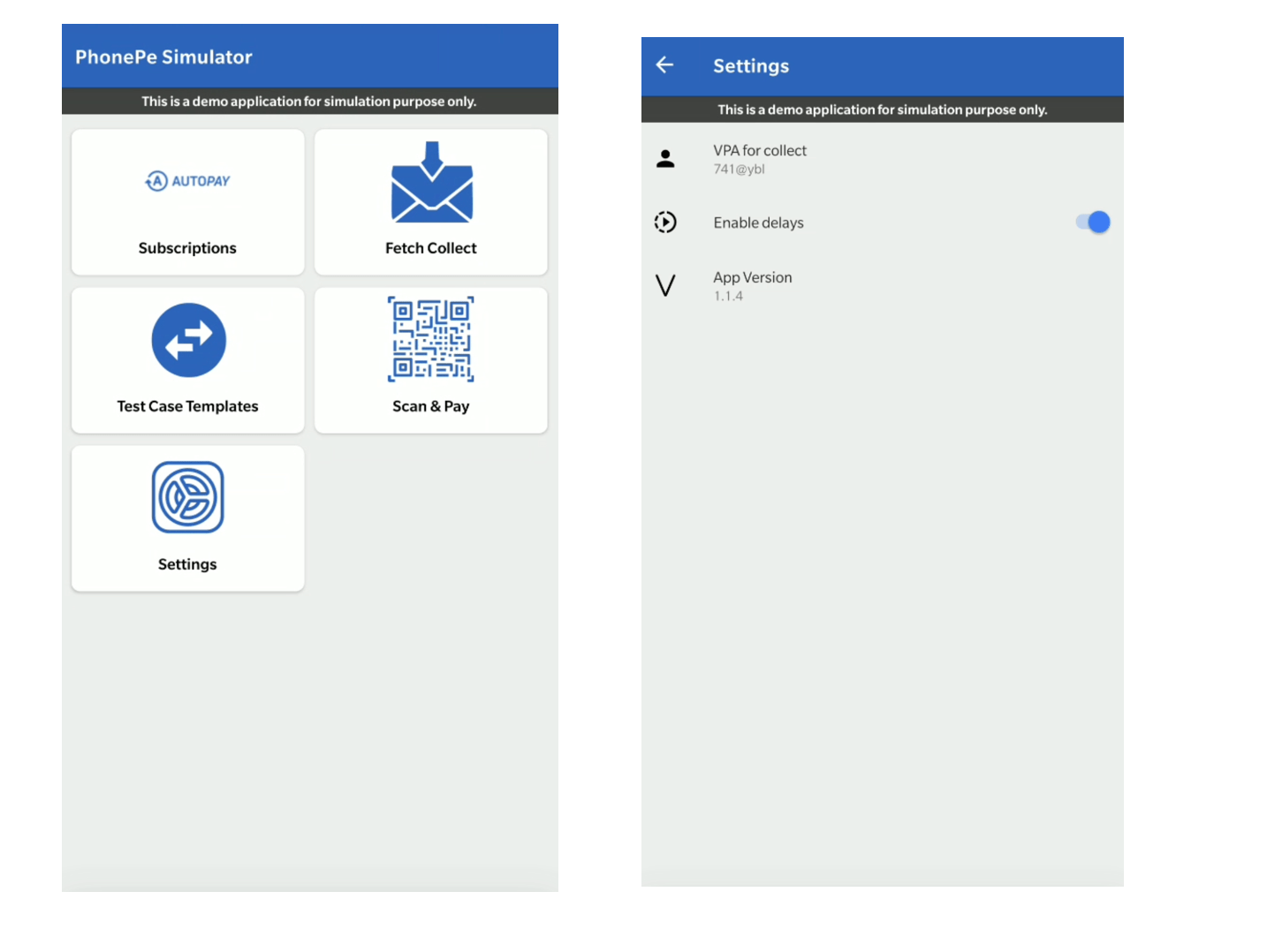
- Click on “Test Case Templates” to configure the Success, Failure, or Pending templates to receive the response accordingly.
By default, the Success template will be set and you will always get the Success Response.
Configure Template
To configure the required template,
- Open the PhonePe Test App- Select the “Test Case Templates” button.
- Enter the “Merchant ID” and click “GET CONFIGURED TEMPLATES”
- Enter the “Merchant ID” and click “GET CONFIGURED TEMPLATES” to fetch the current templates if already set. Else, you will get “No Template Configured”
- For PG Integration – use the “Flow: dispute” to configure the required template for Success, Failure, or Pending scenarios
Steps to Configure Template

Make sure to set the right templates for the Chargeback integration.
Templates for each type of Payment Method
Accept Raised Dispute: "Setup dispute for accepting the raised dispute"
List Dispute won by the merchant: "merchant won"
List Dispute lost by the merchant: "merchant lost"
List Dispute under review: "dispute under review"
Invalid Dispute Id: "Getting exception with invalid dispute id"


