Reports
The “Reports” section is your central hub for generating and downloading detailed financial reports related to your transactions and refunds. These reports are invaluable for reconciliation, financial analysis, accounting, and understanding your business performance over time.
Key Sub-Tabs:
The “Reports” section is organized into following sub-tabs:
- Transaction Reports
- Refund Reports
Transaction Reports
This tab allows you to generate custom reports for your payment transactions based on specific criteria like date range, status, and payment instrument.
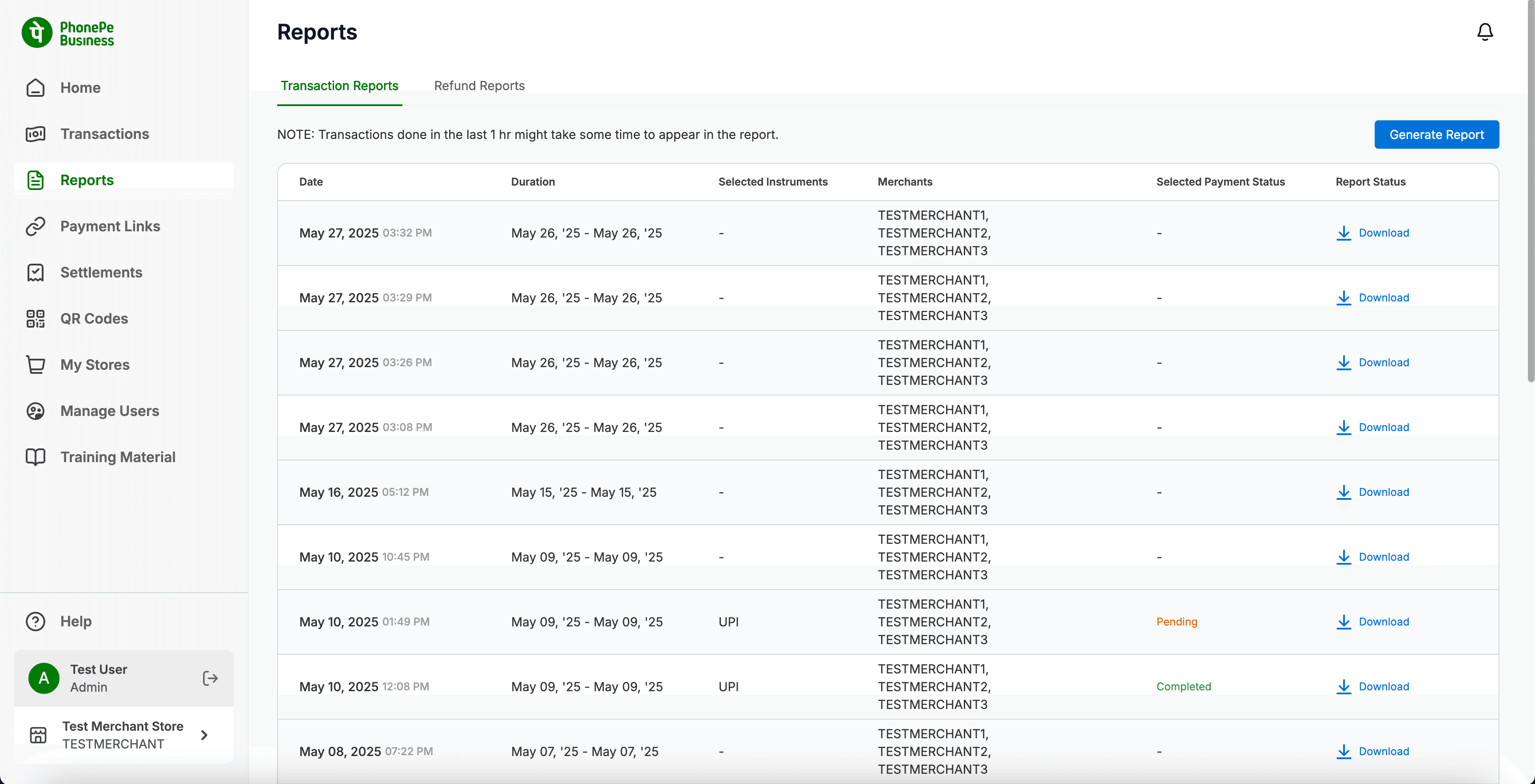
Key Elements & Sections:
- “NOTE: Transactions done in the last 1 hr might take some time to appear in the report.”
- An important disclaimer indicating a potential delay in real-time data for reporting purposes.
- Generate Report Button:
- A prominent button at the top right. Clicking this opens the “Generate Transaction Report” modal, where you define the parameters for your report.
- Report History Table:
- Displays a list of previously generated Transaction Reports.
- Date: The date and time when the report was generated.
- Duration: The date range covered by the report (e.g., “May 25 – May 25”).
- Selected Instruments: The payment instruments included in the report (e.g., “UPI,” “Wallet,” or blank if all were included).
- Merchants: Lists the merchants included in the report (relevant for accounts with multiple merchant IDs).
- Selected Payment Status: The transaction status filtered for in the report (e.g., “Completed,” “Pending,” or blank if all statuses were included).
- Report Status / Action:
- Shows the status of the report generation (e.g., “Pending,” “Completed”).
- Provides a “Download” link (with a download icon) to retrieve the generated report file.
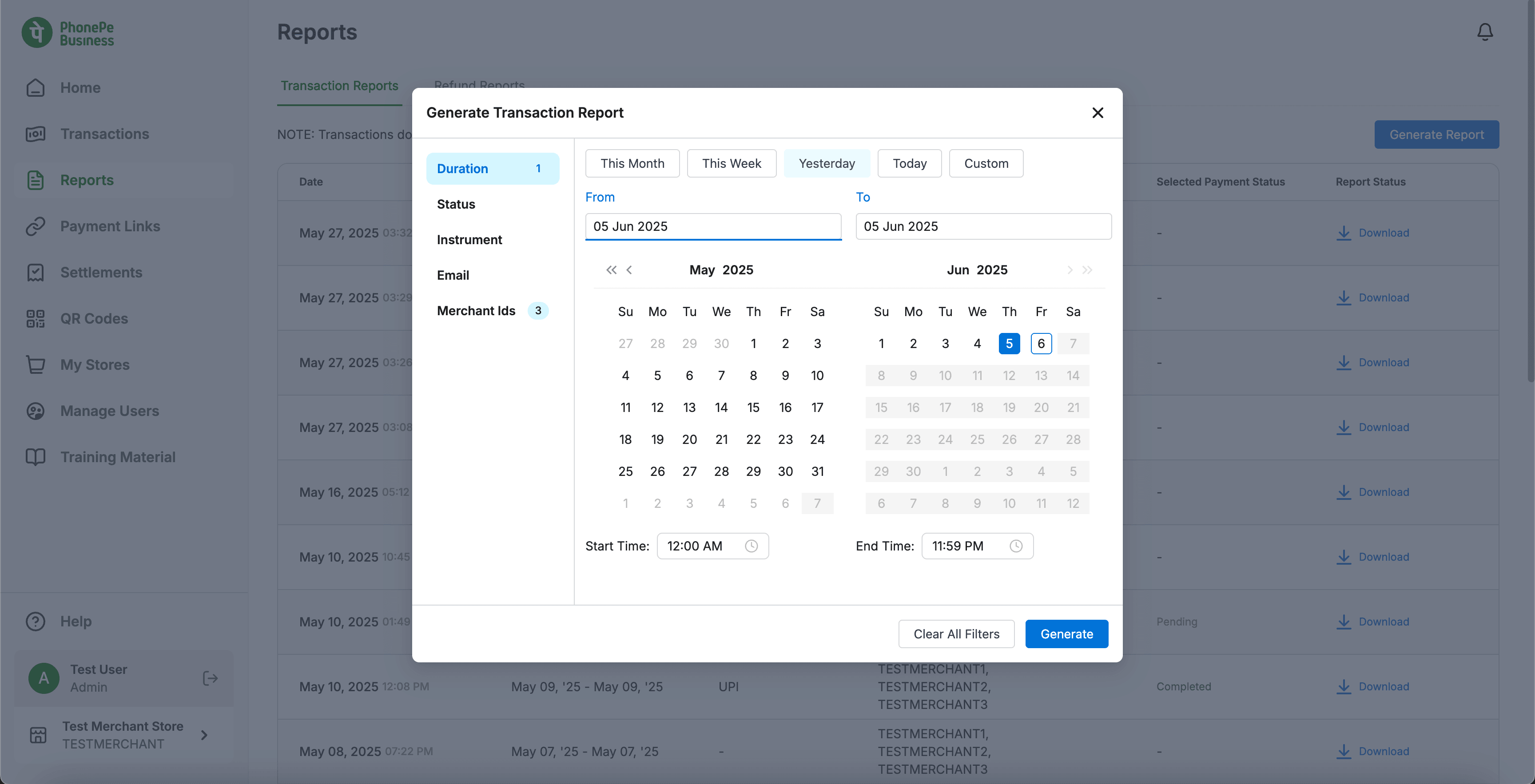
“Generate Transaction Report” Modal
This modal is where you define the criteria for the transaction report you wish to generate.
Key Elements & Options:
- Duration Selector:
- Predefined Ranges: “This Month,” “This Week,” “Yesterday,” “Today.” Selecting these automatically populates the “From” and “To” dates.
- Custom: Allows you to manually select a specific date range using the calendar.
- From/To Date Pickers:
- Input fields for selecting the start and end dates for the report.
- Includes a calendar view for easy date selection.
- Start Time / End Time: Allows you to specify the exact time range within the selected dates (e.g., “12:00 AM” to “11:59 PM” for full day).
- Status Filter:
- A dropdown or selection box to include transactions of specific statuses (e.g., Completed, Pending, Failed, etc.).
- Instrument Filter:
- A dropdown or selection box to include transactions made via specific payment instruments (e.g., UPI, Credit Card, Wallet).
- Email:
- An input field to specify the email address where the report should be sent.
- Merchant IDs:
- Likely a selection area where you can choose specific merchant IDs to include in the report, useful for businesses with multiple associated IDs.
- Clear All Filters: A button to reset all selected filters to their default.
- Generate Button: Initiates the report generation process based on the selected criteria.
How to Generate a Custom Transaction Report:
- Navigate to the Reports > Transaction Reports tab.
- Click the Generate Report button.
- In the “Generate Transaction Report” modal:
- Select your desired Duration (e.g., “This Week” or “Custom” for specific dates).
- If “Custom” is selected, use the calendar to pick the From and To dates, and adjust Start Time and End Time as needed.
- Choose desired Status and Instrument filters, if applicable.
- Enter the Email where you want the report delivered.
- Select relevant Merchant IDs.
- Click Generate.
- The report will appear in the “Report History Table” with a “Pending” status. Once completed, the status will change, and a “Download” link will become available.
Relevant Screenshots
Refund Reports
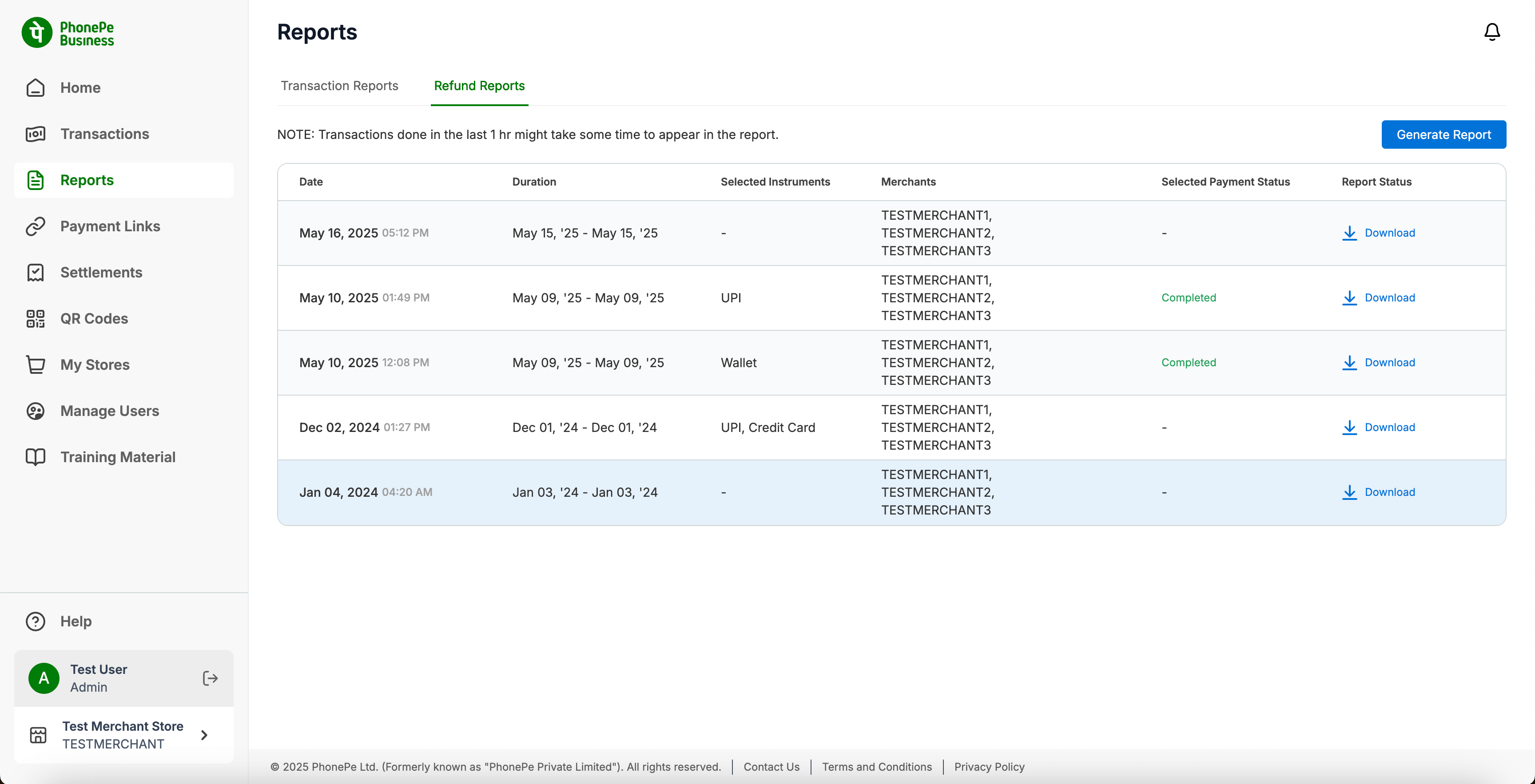
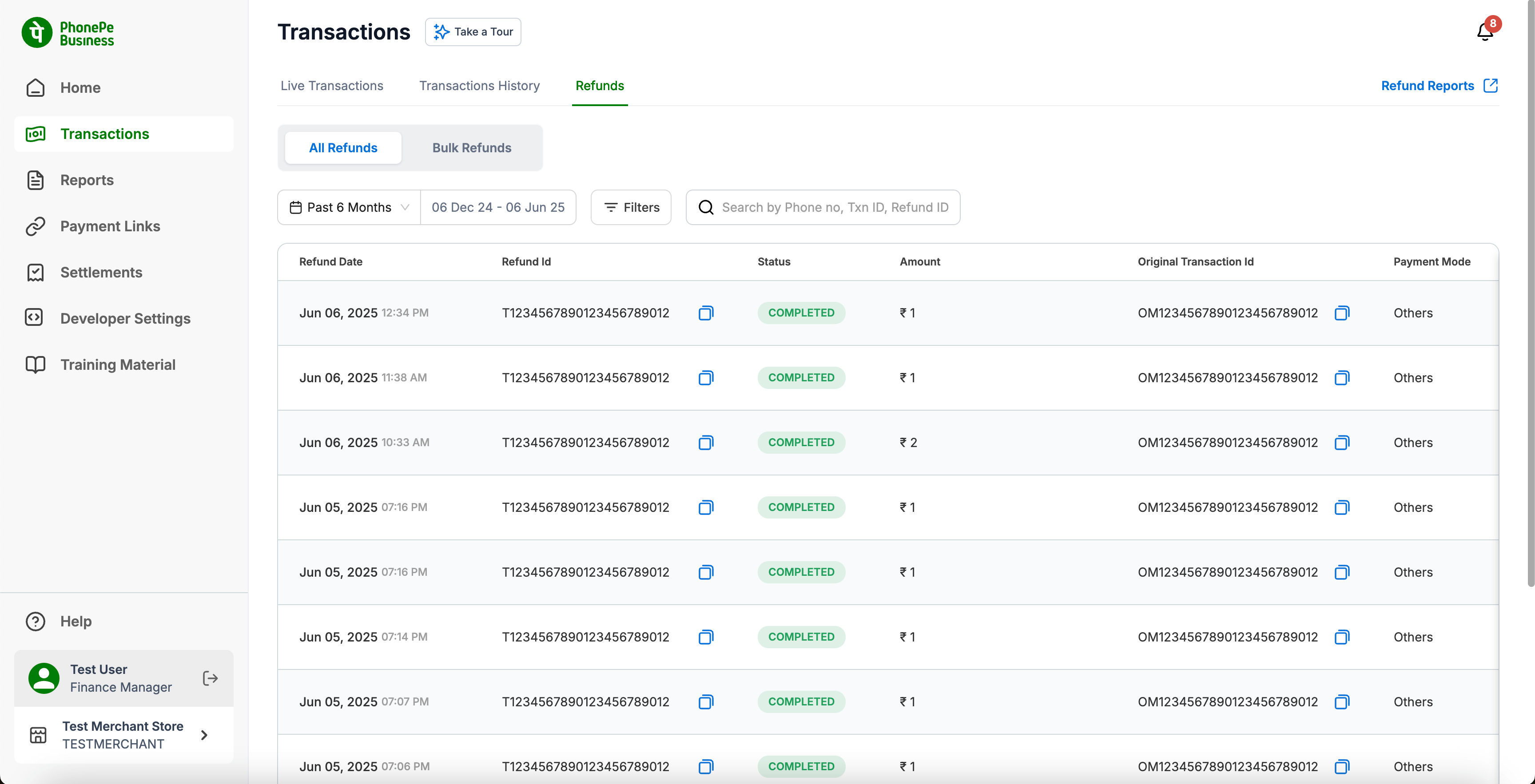
Similar to “Transaction Reports,” this tab allows you to generate custom reports for your refund transactions.
Relevant Screenshots: