
UAT Sandbox for Autopay
What is UAT Sandbox?
The UAT Sandbox allows you to simulate end to end payment flows and test your integration thoroughly. It uses templates that map APIs to predefined sample responses, enabling you to simulate various scenarios such as payment Success, Failure, and Pending without real transactions.
Benefits of using the UAT Sandbox
- Even if the PhonePe UAT server is unavailable, the UAT Sandbox ensures a smooth testing experience. You can continue validating payment flows without disruptions.
- Simulate various payment outcomes such as success, failure, and pending states. This helps ensure your integration handles all real-world scenarios reliably.
- Thoroughly test the entire payment lifecycle from initiation to response. This ensures a stable and seamless experience when you move to production.
Steps for Autopay – UPI
Follow the below steps to verify different payment methods on the Custom Checkout page.
- Update the Host URL of the UAT Sandbox:
Host: https://api-preprod.phonepe.com/apis/pg-sandbox
Android/iOS Test App
Download and install the PhonePe Test app to verify the flows in UAT.
- Android – Download from here [Package Name: com.phonepe.simulator]
- iOS – Share the Email ID with the PhonePe Integration Team on the integration thread to send the invite via Firebase.
Test App Setup
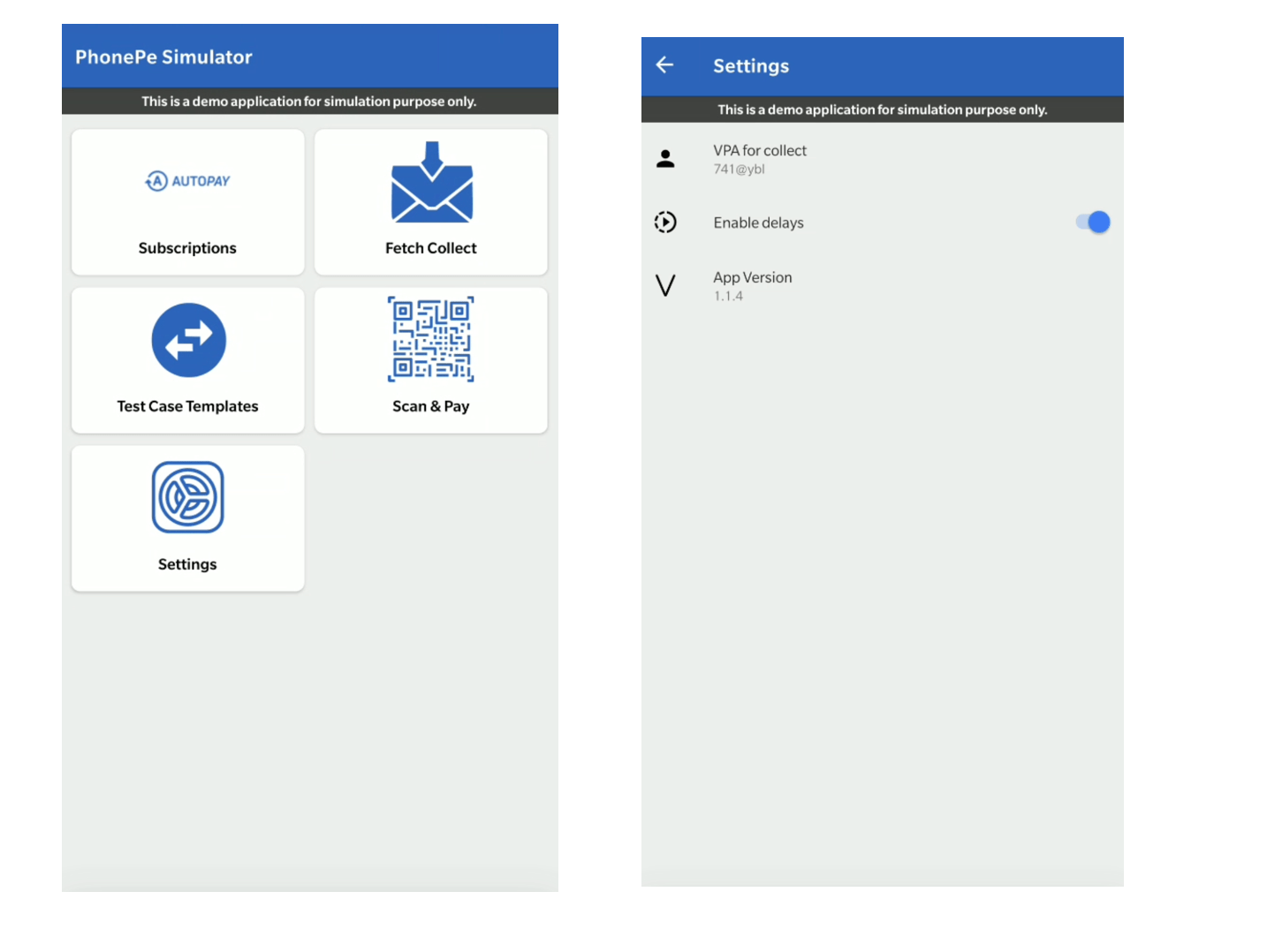
- Click on “Test Case Templates” to configure the Success, Failure, or Pending templates to receive the response accordingly.
Note: Make sure to set the template before starting the API testing. - Once the Subscription is set up using UPI Intent, then the subscriptions will be visible once you click the “Subscriptions” button. For each Subscription, you will be able to see the option to Pause/UnPause/Revoke.
- Share the Callback/Webhook URL with the Integration team to configure the Static Callback URL for Pause/UnPause/Revoke features.
Configure Template
To configure the required template,
- Open the PhonePe UAT Test App- Select the “Test Case Templates” button.
- Enter the “Merchant ID” and click “GET CONFIGURED TEMPLATES”
- Enter the “Merchant ID” and click “GET CONFIGURED TEMPLATES” to fetch the current templates if already set. Else, you will get “No Template Configured”
- For AutoPay Integration – use the “Flow: Subscription V2” to configure the required template for Success, Failure, or Pending scenarios
Make sure to set the right templates for the Subscription integration.
Templates For Custom Checkout
For Success - "Setup success via UPI Intent"
For Failure - "Setup failure via UPI Intent"For Success - "Setup, notify & redemption success with merchant controlled retries"
For Success (Auto Debit - True) - "Setup, notify & redemption success with PhonePe retries auto debit true"
For Success (Auto Debit - False) - "Setup, notify & redemption success with PhonePe retries auto debit false"For Redemption Failure - "Setup, notify success & redemption failure with PhonePe retries auto debit false"
For Redemption Failure - "Setup, notify success & redemption failure with merchant controlled retries"For Notification Failure - "Setup success & notify failure"
For Redemption Failure - "Redemption failure with PhonePe retries & auto debit true"Templates For Standard Checkout
"Standard Redemption Success Retry Auto Debit False"
"Standard Redemption Success Retry Auto Debit True"
"Standard Redemption Failure Retry Auto Debit False"
"Standard Redemption Failure Retry Auto Debit True"
What’s Next?
Now that you have learned how to simulate the UAT sandbox environment, we will now walk you through the process of going live with your integration.


