
Branding and Customization
You can fully customize your website by adjusting the Brand Theme and Colour Palette. Whether you are aiming for a professional corporate look or a vibrant creative space, these settings give you complete control over your visual identity not just on your website, but across your Standard Checkout Page and Payment Links.
How to Customize Your Brand
Follow these simple steps to update your website’s look:
- Navigate to the Settings menu from your main PhonePe Business Dashboard.
- Click the arrow icon next to the Brand Colour section to begin customizing your checkout screen to match your brand.
- Define colour Your Palette: For precise branding, you can select your colour by colour picker or enter the value in RGB or hex codes.
- Example: Enter $R: 153, G: 103, B: 209$ or #9967d1 for light purple.


- Set Button Text Colour: You can change the button text colour to either a Dark or Light theme.
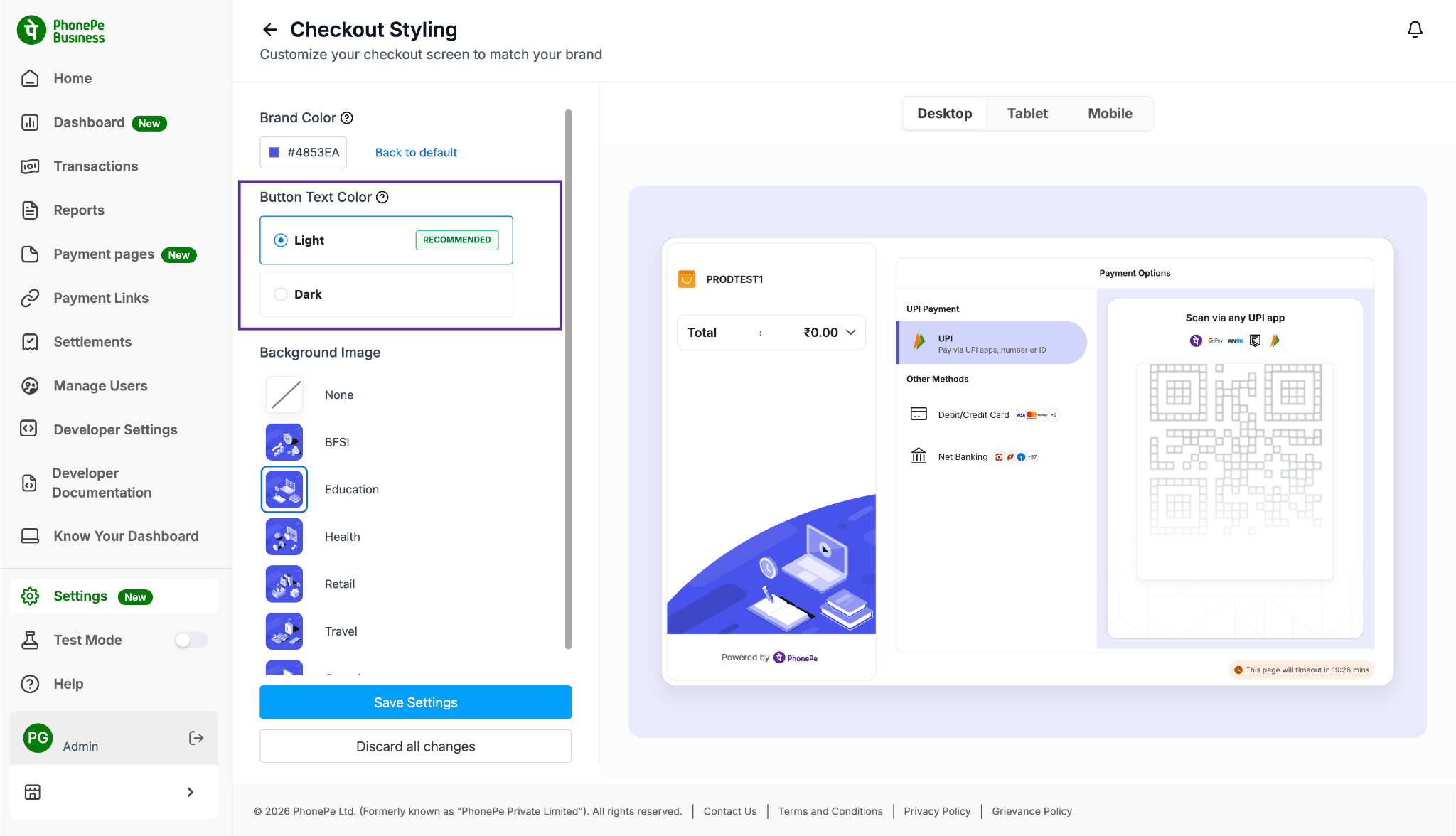
- Select a Background: Browse our curated library and select a Background Image from the provided list to add depth to your pages.

- Use the Preview Window: As you adjust your Brand Colour and Button Text, use the Preview window to see which combination looks best in real-time.

- If you prefer to use PhonePe’s standard branding, simply click Back to Default to revert to the original colours.

By following these simple steps, you can create a professional look that truly reflects your brand. Using the RGB settings and the Preview window allows you to perfect your design before it goes live.
Once you’re happy with your new colours and background, just save your changes!


