
How to Create a Payment Link
Creating payment links through your PhonePe Business Dashboard provides a fast way to securely request funds from your customers. By simply entering basic transaction and contact details, you can instantly generate payment links and share it right to their inbox or phone.
Here is how to generate a payment link:
- Login to your PhonePe Business Dashboard.
- Navigate to Payment links from the main menu.
- Click on New paylinks and select Single payment link.
- On the next screen, you will need to fill out the payment link details. Please enter the following information:
| Field Name | Description & Notes |
|---|---|
| Amount | The total amount to be collected from the customer. |
| Payment request for | A brief description of what the payment is for, and this message will be shown in the checkout page for your customers. |
| Customer Name | The full name of the customer. |
| Reference ID | Your internal tracking number or order ID. |
| Email ID | The customer’s email address (used to send the link). |
| Phone Number | The customer’s mobile number (used to send the link via SMS/message). |
| Link Expire Date | The date the link will become inactive. Note: By default, the expiry date is automatically set to one month from the creation date. |
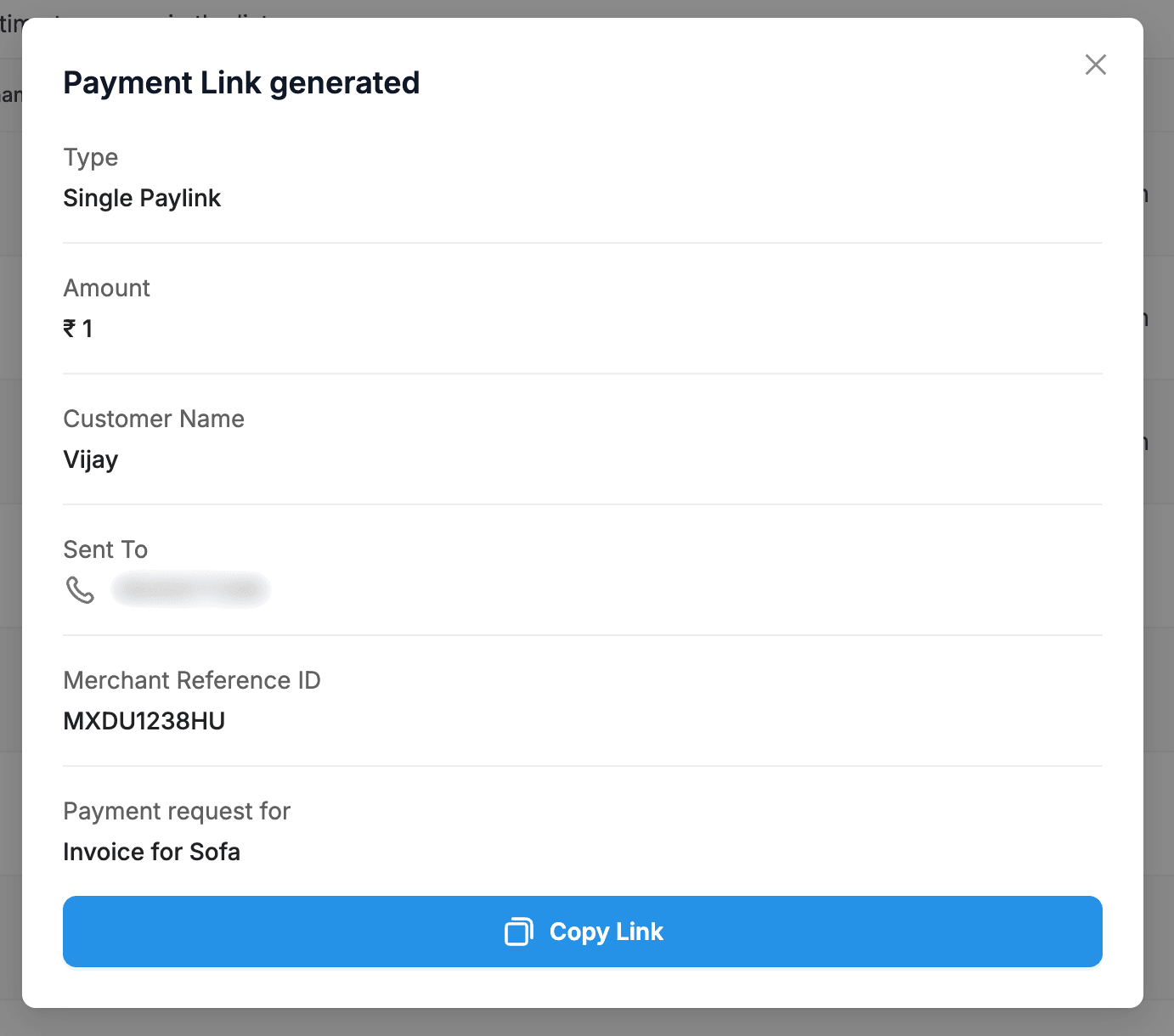
- Click Generate link.
Once generated, the payment link will be active, and an automated message containing the link will be sent to your customer using the contact details provided. You can also copy the link and share it via email or messages.
Payment Link Status
| Status | Detailed Description |
Active | The default status immediately after a payment link is created. It indicates that the link is currently live, valid, and ready for your customer to open and make a payment. |
Completed | The transaction was successful. This status appears once your customer has fully paid the requested amount. The link is now closed to further payments. |
Cancelled | The payment link has been manually voided by you from the dashboard. Once cancelled, the URL is deactivated and customers can no longer access the checkout page. |
Expired | The payment link has passed its designated expiration date (which defaults to one month unless changed). The link is no longer valid, and the customer cannot use it to pay. |
Failed | The transaction attempt was unsuccessful, often due to issues like bank rejections or incorrect details. Note: The customer is allowed a total of 3 attempts to complete the payment successfully using the same link. |
What’s Next?
Now that you’ve learned how to create a payment link, let’s look at how to share it again. Head over to the next section to learn how to easily reshare your active links.


